SuperVPN Guide
Why Does My VPN Work on Mobile Data but Not on Wi-Fi?
Your VPN connects normally when you're outside using mobile data. But as soon as you get home and switch to Wi-Fi, it refuses to connect or gets stuck trying.
You've already checked that your VPN account works. You've even tested the same app on the same phone. So why does changing the internet connection make such a difference?
The important clue is that your VPN works on one network but not the other. That usually means you should investigate the Wi-Fi connection before changing anything in the VPN app.
First, Confirm That Wi-Fi Works Without the VPN
Disconnect the VPN while staying connected to the Wi-Fi network.
Open a few websites and check whether ordinary internet access is working.
If websites won't load even without the VPN, the problem isn't specific to VPN traffic. Your router, internet provider, or Wi-Fi connection may be experiencing an issue.
If everything works normally without the VPN but stops when you reconnect, continue with the following checks.
Check Whether the Wi-Fi Network Requires a Login
This is especially common with hotel, airport, university, and public Wi-Fi.
Some networks require you to accept terms, enter a room number, or sign in through a browser before providing full internet access. This is called a captive portal.
A VPN may struggle to connect before you've completed that login.
Try this:
- Disconnect your VPN.
- Connect to the Wi-Fi network.
- Open a browser and visit a regular website.
- Complete any sign-in or acceptance page that appears.
- Once ordinary internet access works, reconnect your VPN.
If you're staying at a hotel, this is worth checking before assuming the network blocks VPNs. We also explain the practical risks of using hotel networks in Do I Need a VPN on Hotel Wi-Fi?.
Your Router May Be Restricting VPN Traffic
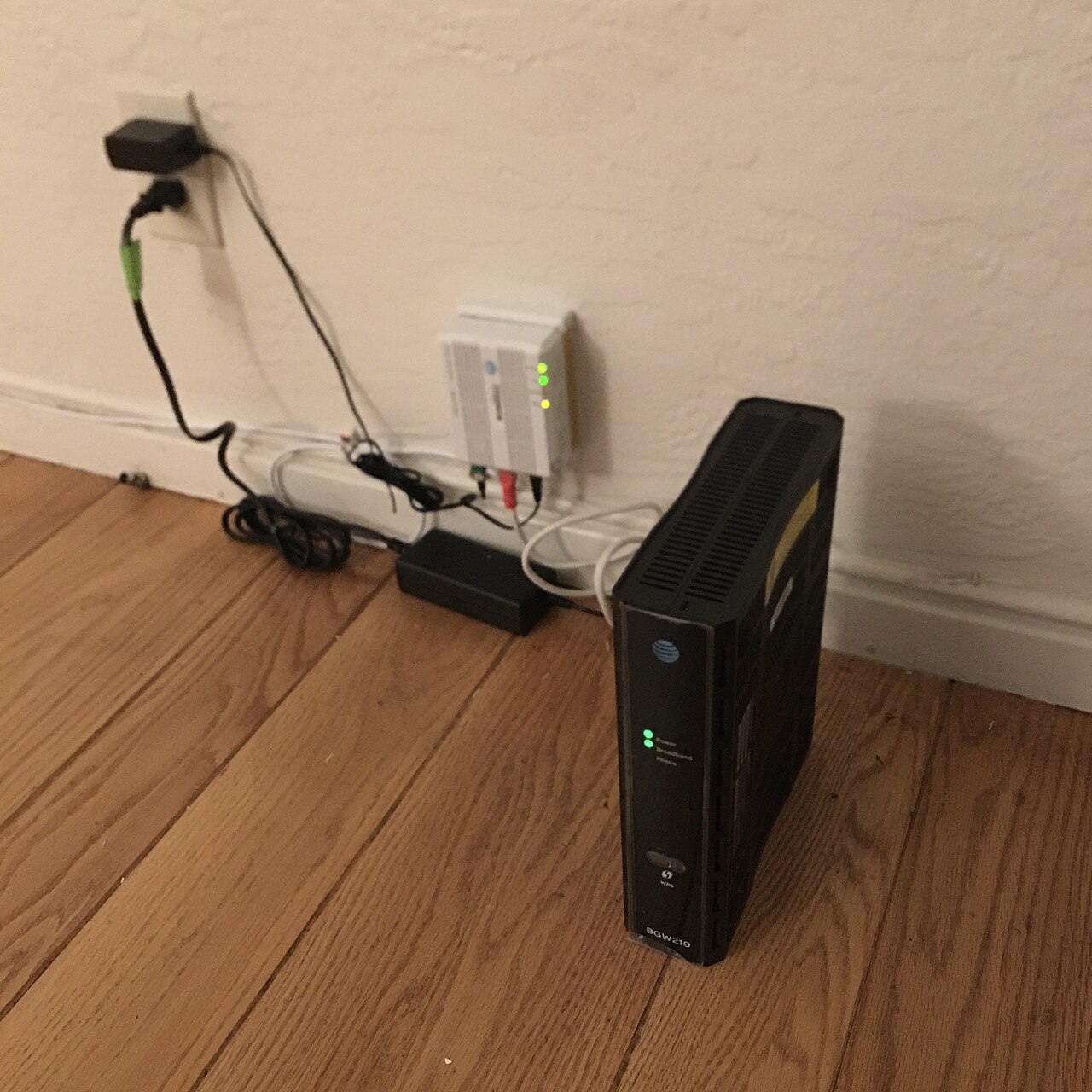
A home Wi-Fi network can behave differently from your mobile connection because the router controls how traffic leaves your home network.
Some routers include firewall rules, parental controls, security filters, or other network management features that can interfere with VPN connections.
A useful test is to connect your phone to a different Wi-Fi network.
For example:
- Try a friend's home Wi-Fi.
- Use another trusted network.
- Test the same VPN using a mobile hotspot from a different device.
If the VPN works on other Wi-Fi networks but consistently fails on your home network, the router becomes a more likely place to investigate.
Check whether you recently changed router security settings, enabled parental controls, or installed new network filtering features.
Don't immediately disable the router firewall. If a setting appears responsible, identify the specific restriction before making changes to your network security.
Check Private DNS and Network Filtering
Android's Private DNS setting can affect how your phone resolves website addresses.
If you use a custom DNS provider, ad blocker, firewall, or filtering app, it may behave differently across networks.
To test Private DNS:
- Open Android Settings.
- Search for Private DNS.
- Check whether a custom provider hostname is configured.
- If you added it manually, temporarily switch to Automatic.
- Reconnect the VPN and test again.
You can also temporarily pause a third-party DNS filtering or firewall app if you suspect it is interfering.
Change one setting at a time. Otherwise, you may fix the connection without knowing what caused the original problem.
Try Another VPN Server, but Don't Keep Switching Randomly
If your Wi-Fi connection works normally and other networks allow the VPN to connect, try a different VPN server location.
A particular server may be temporarily unavailable or may have difficulty establishing a connection from your current network.
Compare the results:
- One server works, another doesn't: The problem may be specific to the server.
- No server works on home Wi-Fi: Investigate router or network restrictions.
- VPN works on other Wi-Fi networks: Your home network is a stronger suspect.
- VPN works on Wi-Fi but not mobile data later: Check mobile data permissions and network restrictions separately.
A server change is useful as a test, but it isn't a permanent solution if the same network problem keeps returning.
Why Does Your Home Wi-Fi Block VPN Connections?
There isn't one universal reason.
A router may have restrictive firewall settings, an internet provider may use network configurations that affect certain VPN protocols, or a network administrator may deliberately limit VPN traffic.
This can also happen on workplace and school networks, where administrators control which types of connections are allowed.
If you're using a managed network, don't try to bypass its security rules. Ask the network administrator whether VPN connections are permitted.
What If the VPN Connects but Nothing Loads?
Sometimes the VPN app shows Connected on Wi-Fi, but websites still fail to open.
That's slightly different from a VPN that cannot connect at all.
In that case, compare normal internet access with VPN access, test another server, and check DNS settings. Our guide on VPN connected but no internet covers that particular symptom in more detail.
Find Out Which Network Is Causing the Problem
The simplest way to narrow this down is to test the same phone and VPN app across two or three networks.
If mobile data works, another Wi-Fi network works, but your home Wi-Fi doesn't, focus on your router and its network settings.
If every Wi-Fi network fails, look more closely at the VPN app and Android configuration.
The difference between Wi-Fi and mobile data is useful evidence. Use it to narrow down the cause instead of reinstalling your VPN every time you change networks.