SuperVPN Guide
Why Is My VPN App Not Opening on Android?
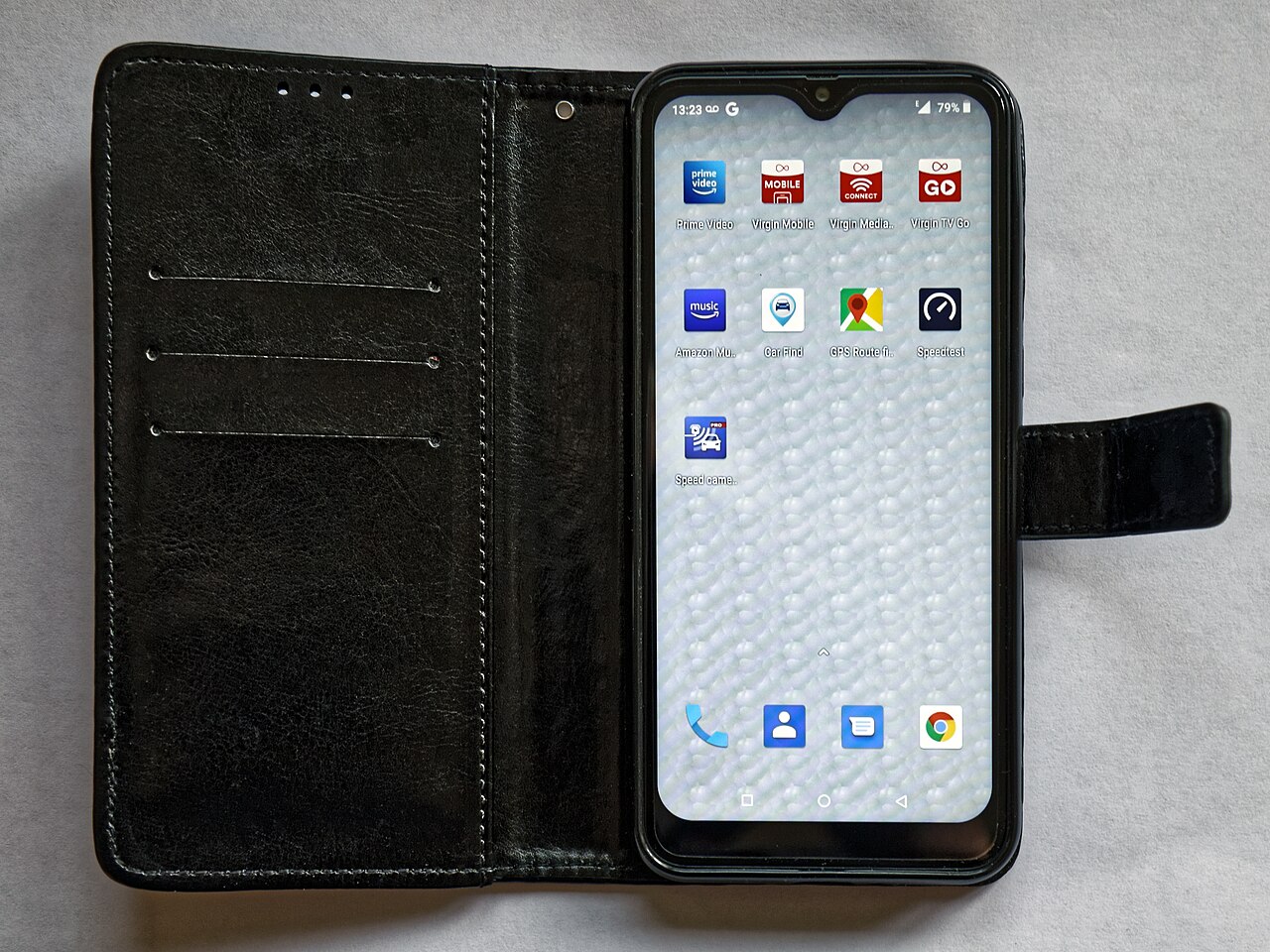
You tap your VPN app, but nothing happens. Maybe the screen flashes for a second before returning to your home screen. Or the app opens, displays its logo, and stays there without loading.
This can happen even if the VPN was working normally the day before.
The first thing to figure out is what the app actually does when you try to open it. An app that immediately crashes needs a different approach from one that opens but gets stuck on its loading screen.
If You Tap the App and Nothing Happens
Start with a simple check: make sure Android hasn't left the app running in a broken or unresponsive state.
- Open the Recent Apps screen.
- Find your VPN app.
- Swipe it away to close it.
- Open the app again.
If nothing changes, force stop it:
- Open Settings.
- Go to Apps.
- Select your VPN app.
- Tap Force stop.
- Open the app again.
Force stopping closes the current app process. It doesn't delete your account or remove the app's settings.
If the app still won't launch, restart your phone. This can clear temporary system problems that affect multiple apps.
If the VPN App Opens but Gets Stuck on Its Logo
A loading screen that never disappears doesn't necessarily mean the app itself is broken.
The app may be waiting for an internet connection, trying to retrieve account information, or loading data from a server that isn't responding.
Try these checks:
- Switch from Wi-Fi to mobile data.
- Turn Airplane Mode on and off.
- Open another app to confirm that the internet works.
- Restart the phone and try again.
- Check whether the app behaves differently after changing networks.
If the VPN app loads on mobile data but not Wi-Fi, investigate the network rather than immediately reinstalling the app. Our guide on why a VPN works on mobile data but not Wi-Fi explains how to narrow down that problem.
Clear the App Cache Without Deleting Everything
Temporary app data can sometimes become corrupted or cause unexpected loading problems.
On Android, you can clear the cache without immediately deleting all app data.
- Open Settings.
- Go to Apps.
- Select your VPN app.
- Open Storage or Storage & cache.
- Tap Clear cache.
- Launch the app again.
Be careful not to confuse Clear cache with Clear storage or Clear data.
Clearing storage can remove saved preferences and local app information. You may need to sign in again or configure the app from scratch.
If you're not sure which option you're selecting, start with Clear cache only.
Did the Problem Start After an Android or App Update?
Think about when the app stopped opening.
If it worked yesterday but started crashing immediately after an update, the timing is important.
An app update may introduce a compatibility issue, while an Android update can change how apps handle permissions, background activity, or system components.
Check the following:
- Open Google Play and see whether another update is available.
- Check whether your Android version meets the app's current requirements.
- Make sure your phone has enough free storage.
- Install pending Android system updates if appropriate.
- Restart the phone after updating.
Also check whether other apps are crashing. If several unrelated apps have started closing unexpectedly, the issue may be with Android or a shared system component rather than your VPN.
Check Android Permissions
Some apps need certain permissions or system access to work correctly.
For VPN apps, the most important interaction is usually the Android VPN connection request, which asks whether the app can establish a VPN connection.
However, don't assume a missing VPN permission is the reason the app won't open. If the app crashes before reaching its connection screen, permissions may not be the main issue.
If the app opens but fails when you try to connect, check whether you previously denied its VPN connection request. You can also review the app's permissions under Android Settings.
When Should You Reinstall the VPN App?
Reinstallation makes sense when the app repeatedly crashes, clearing the cache hasn't helped, and there are no available updates.
Before uninstalling:
- Check whether you know your login details.
- Confirm that you can access your account again.
- Make sure you are using the correct app source.
- Check whether any important local settings will be lost.
Download the app again from its official distribution source or a trusted app store where it is available.
Avoid downloading random APK files from third-party websites just because an installation problem is frustrating. An unofficial or modified package can introduce additional security and compatibility problems.
If the app was installed through an APK, also check whether the package matches your device's Android version and architecture.
What If the VPN App Is Missing From the App List?
Sometimes the app hasn't actually crashed. Its icon may have disappeared from the home screen, or the launcher may no longer display it.
Open Android Settings and check the installed apps list.
If the VPN app is still listed, it may simply have been removed from the home screen or hidden by the launcher.
If it isn't listed, check Google Play or your original installation source to confirm whether it is still installed.
For Android TV users, app visibility and installation compatibility can be different from those on phones. See Why Doesn't My VPN App Appear on Android TV? for the TV-specific situation.
Know When the Problem Is Bigger Than the VPN App
If only your VPN app crashes, focus on its cache, updates, storage, and installation.
If several apps crash, the phone freezes, or Android repeatedly restarts, investigate the device itself. Low storage, system errors, or broader compatibility problems may be involved.
You don't need to factory-reset your phone just because one VPN app refuses to open.
Start with the least disruptive checks, and only move to clearing app data or reinstalling when simpler steps haven't worked. This makes it easier to identify the cause without losing settings unnecessarily.