SuperVPN Guide
Why Does My VPN Disconnect When I Lock My Phone?
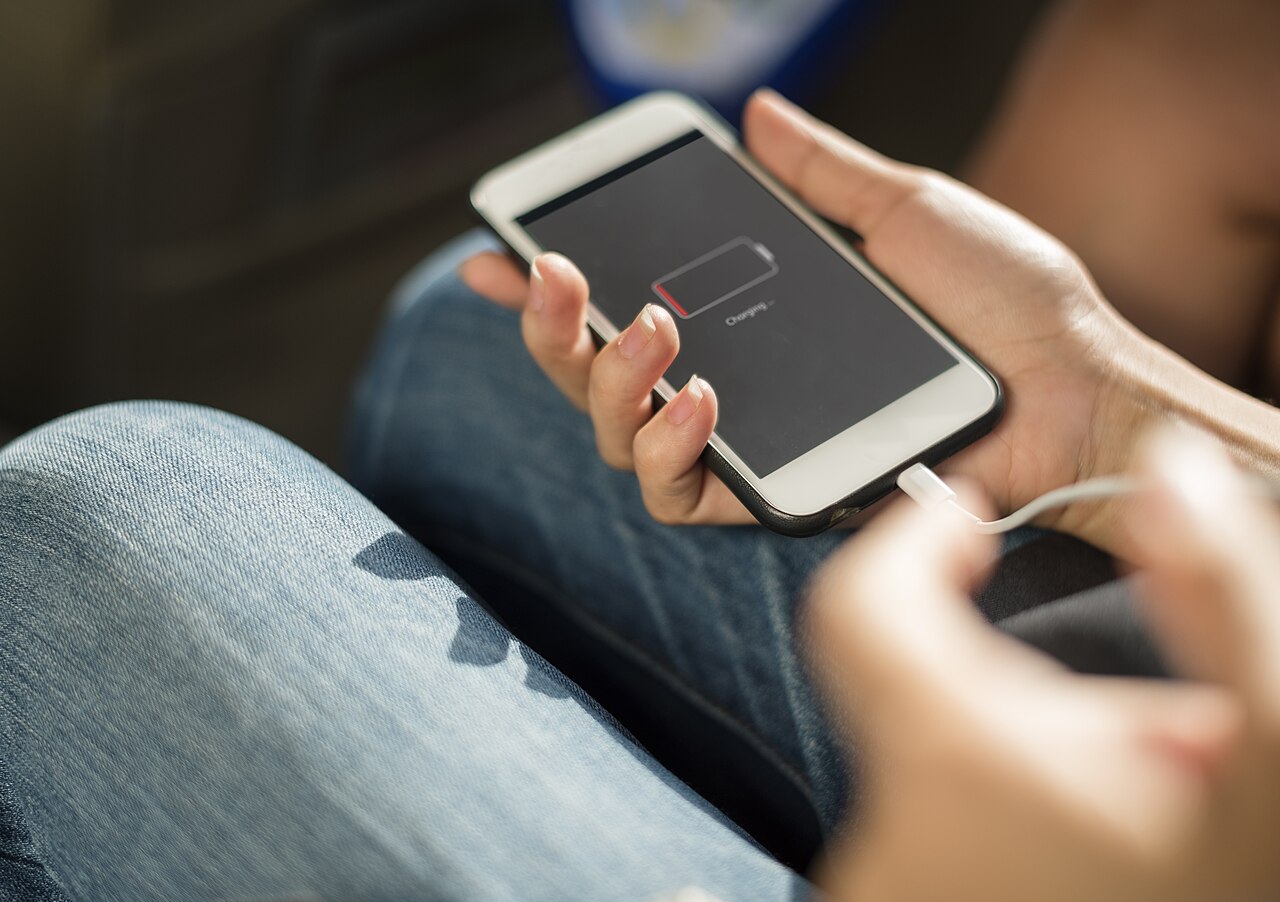
You connect your VPN, open a website, and everything works. Then you put your phone in your pocket. A few minutes later, you pick it up and notice the VPN has disconnected.
Sometimes it reconnects as soon as you unlock the screen. Other times, you have to open the VPN app and tap Connect again.
If this sounds familiar, the problem may not be the VPN server. Android phones manage background apps to reduce battery use, and some manufacturers apply particularly aggressive restrictions when the screen is off.
Here's what to check before reinstalling your VPN app.
Check Battery Optimization First
This is one of the first places to look when a VPN works with the screen on but disconnects during inactivity.
Android may restrict background activity for apps that it considers unnecessary while the phone is idle. Depending on your device, battery optimization can affect how reliably a VPN app continues running.
Try this:
- Open your phone's Settings.
- Go to Apps and find your VPN app.
- Open its Battery or App battery usage settings.
- Look for options such as Unrestricted, Allow background activity, or Don't optimize.
- If available, allow the VPN app to run without the usual battery restrictions.
The wording and available options differ between Android versions.
You don't necessarily need to disable battery optimization for every app. Focus on the VPN app and test whether it stays connected after locking your phone.
Samsung, Xiaomi, and Other Android Phones May Behave Differently
Some Android manufacturers add their own battery management features on top of standard Android settings.
That means changing one battery option may not be enough.
On Samsung phones: Check whether the VPN app has been placed in Sleeping apps or Deep sleeping apps. If it has, remove it from those lists. Also check whether background usage is restricted.
On Xiaomi and Redmi phones: Look for Battery saver settings and background activity permissions. Some models also have app-specific restrictions that can stop background processes.
On OnePlus phones: Check app battery management and background activity settings. Depending on the OxygenOS version, the available controls may be named differently.
Don't assume every phone has the same menu. If you can't find a setting, use the Settings search box and search for terms such as Battery optimization, Background activity, or Sleeping apps.
Check Whether Data Saver Is Restricting the App
Battery management isn't the only possible reason.
Android's Data Saver feature can restrict background mobile data for apps that aren't allowed to use unrestricted data.
If your VPN disconnects mainly when you're using mobile data, check this setting:
- Open Settings.
- Search for Data Saver.
- Check whether it is enabled.
- If it is, look for an option to allow unrestricted data usage.
- Allow your VPN app if the option is available.
This is particularly worth checking if the VPN works on Wi-Fi but becomes unreliable when the phone is locked on a mobile connection.
Look at What Happens When You Unlock the Phone
The timing of the disconnection can help identify the cause.\n\nIf the VPN also disconnects while you're actively using the phone, it may be a separate connection issue. Our SuperVPN disconnection troubleshooting guide covers internet interruptions, server changes, and other possible causes.
Check for Conflicts With Other VPN or Security Apps
Some Android apps use the system's VPN interface even if they aren't traditional VPN services.
Examples include certain ad blockers, firewall apps, DNS filters, and other VPN clients.
Android generally supports one active VPN service at a time. If another app takes control of that connection, your VPN may disconnect or fail to reconnect as expected.
Check whether another network-filtering app is running. If you recently installed one, temporarily disable it and test your VPN again.
Also look at your VPN app's connection settings. Some apps offer an Always-on VPN option through Android settings, while others provide their own reconnect or auto-connect controls.
These features are not identical, so check what your particular app supports.
Does Always-on VPN Solve the Problem?
Android includes an Always-on VPN option on supported devices. It can help keep VPN routing active and may prevent traffic from using an ordinary connection when the VPN isn't available.
However, it doesn't automatically solve every background restriction. If Android or the phone manufacturer is stopping the VPN app, you may still need to adjust battery and background permissions.
You should also understand the difference between keeping a VPN active and automatically reconnecting after a disconnection. They are related but not the same thing.
Test It Before Assuming the Problem Is Fixed
After changing the settings, connect your VPN and lock your phone for around 10–15 minutes.
Unlock it and check the VPN status before opening the app.
If the connection stays active, the battery or background restriction was a likely cause. If it disconnects again, try the same test with another network and check whether the problem happens only during mobile data use.
A VPN that works perfectly while you're holding your phone but stops when the screen goes off is often a background management problem. Start there rather than repeatedly changing VPN servers.