SuperVPN Guide
Why Does Streaming Stop Working When My VPN Is Connected?
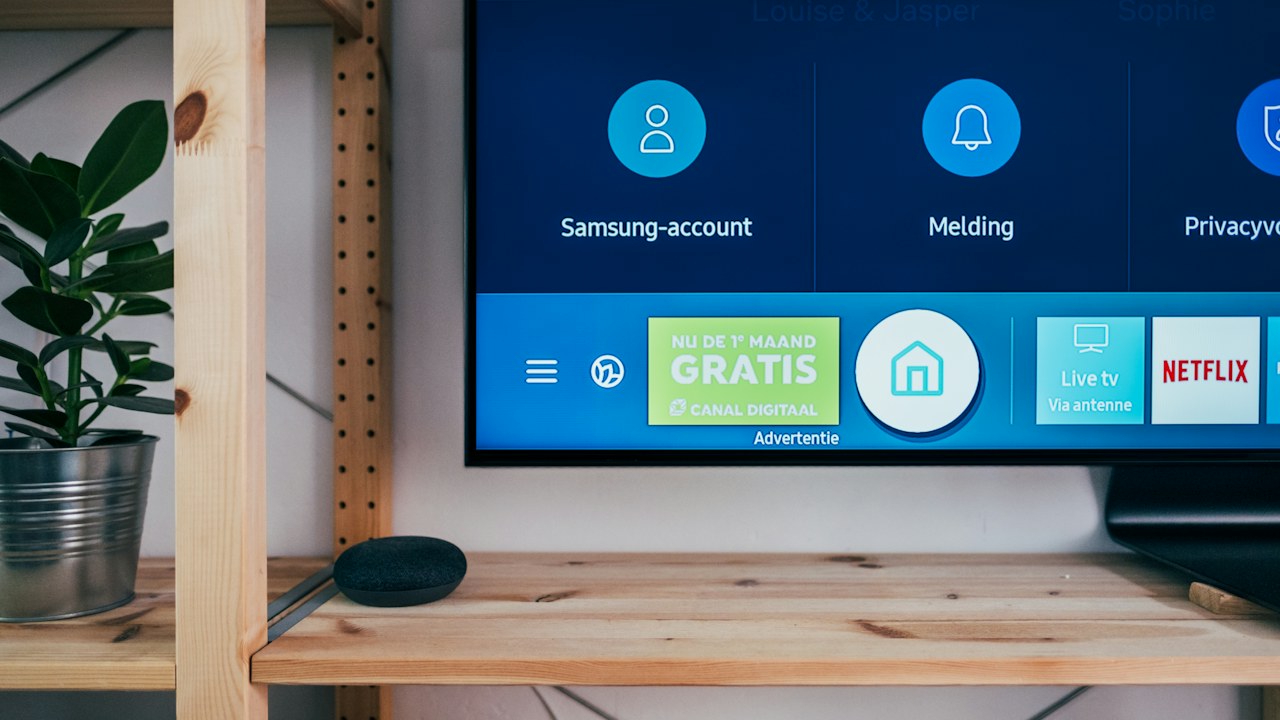
You open Netflix or another streaming app on your Android TV, connect your VPN, and suddenly the video won't play. Perhaps the app keeps loading, displays an error, or works normally again as soon as you disconnect the VPN.
It's tempting to assume that the VPN is broken, but that's not always the case.
The VPN connection itself might be working while the streaming service refuses the connection. Alternatively, the selected server may be slow, your home internet may be unstable, or the streaming app may need to be restarted after your network location changes.
The quickest way to find the cause is to test one thing at a time. Here's how to do that without repeatedly reinstalling apps or changing settings you don't need to touch.
Check Whether Streaming Works Without the VPN
Start with a simple comparison. It helps you distinguish a general internet problem from one related to the VPN connection.
- Open your VPN app on the Android TV.
- Disconnect the VPN.
- Open the streaming app that isn't working.
- Try playing the same video.
- Reconnect the VPN and test again.
What happens next matters.
If streaming fails both with and without the VPN: The issue may be your Wi-Fi connection, the streaming app, your account, or the streaming service itself. Fixing the VPN probably won't solve it.
If streaming works without the VPN but fails when connected: The VPN server, the new IP address, or the streaming service's VPN restrictions may be involved.
If the streaming app opens but videos keep buffering: Investigate connection speed and server performance before changing other settings.
This test won't identify every possible cause, but it tells you where to focus your next step.
Switch to Another VPN Server
A VPN server can become busy, temporarily unavailable, or unsuitable for a particular streaming service. Your VPN may show Connected even when the selected route isn't giving you the best playback experience.
Try another available server.
On VPN Super for Android TV:
- Open VPN Super.
- Select the Location option below the Connect button.
- Choose another location from the available list.
- Wait for the connection to complete.
- Reopen your streaming app and test playback.
If your priority is speed, start with the recommended Fastest location or a server with lower latency, measured in milliseconds (ms).
If you need to connect through a specific country, choose an available server in that country and compare the results. A nearby server may be faster, but it won't necessarily provide the same regional catalog as a server in your target country.
VPN Super's Android TV app offers a smaller selection of locations than some of its other apps. If the country you need isn't listed, check the official Android TV server location guide.
Don't keep switching servers randomly. Test one location at a time so you can tell whether the change makes a difference.
Restart the Streaming App After Connecting
Some streaming apps don't handle a network-location change smoothly while they're already running.
For example, you might open a streaming app first, connect your VPN afterward, and then find that videos won't load. The app may still be using a connection established before the VPN was activated.
Try this sequence:
- Connect your VPN and wait until it shows that you're connected.
- Return to the Android TV home screen.
- Open the streaming app again.
- Play a video and see whether the problem persists.
If returning to the home screen doesn't help, force-stop the streaming app through your TV's Settings > Apps menu, then open it again. Menu names vary by device.
Avoid clearing the streaming app's storage or deleting its data as your first step. Doing so may sign you out or remove local settings without fixing the underlying network issue.
Check Whether the Streaming Service Is Restricting the Connection
A working VPN connection doesn't guarantee that every streaming platform will accept it.
Streaming services may identify and restrict IP addresses associated with VPN servers. They may also apply regional licensing rules, account-country requirements, or other access restrictions.
This can explain a common situation: your VPN says Connected, other apps work, but one streaming service displays an error or refuses to play a video.
Here's how to narrow it down:
- Try another video within the same streaming app.
- Check whether the service works when the VPN is disconnected.
- Test a different available server location.
- Check your streaming account's region and subscription status.
- Look for an outage or service notice from the streaming provider.
If other apps work normally through the VPN, but one particular streaming service doesn't, the issue may be specific to that service rather than your entire internet connection.
Changing servers can sometimes help, but it isn't guaranteed. No VPN can promise access to every streaming library or bypass every platform restriction.
Fix Buffering and Slow Playback
Buffering doesn't always mean the VPN is blocking your streaming app. Video playback can slow down because of weak Wi-Fi, network congestion, server distance, or the extra routing involved in a VPN connection.
Try these checks in order.
Compare playback with the VPN off.
If the video plays smoothly without the VPN but buffers when connected, test another VPN location. If playback is slow in both cases, focus on your home network or streaming device.
Choose a faster server.
On VPN Super, open Location and choose Fastest, or compare the latency shown beside available locations. A lower latency generally means a quicker response, although it doesn't guarantee the highest streaming throughput.
Check your Wi-Fi signal.
If your TV is far from the router, move it closer if possible. You can also restart the router or try a wired connection if your device supports Ethernet.
Check other devices on the network.
Large downloads, video calls, game updates, and other streaming sessions can compete for bandwidth. Pause unnecessary downloads and test again.
Restart the TV if necessary.
If the connection remains unstable after these checks, restart your Android TV and reconnect to the VPN.
Remember that some speed reduction is normal when using a VPN. The goal is to determine whether the slowdown comes from the server, your local network, or the streaming service.
Check Your VPN Protocol Settings
If your VPN connects but certain services remain inaccessible, the connection protocol may be worth checking.
VPN Super's official troubleshooting guidance recommends trying a different protocol when connection problems persist. On Android TV, the app provides protocol options, including Auto.
Start with Auto if it's available. If the problem continues, try another protocol offered by the app and test the streaming service again.
After changing the protocol, reconnect before testing playback. Don't change the protocol, server location, and network settings all at once; otherwise, you won't know which change helped.
If your VPN connects successfully but only one streaming platform fails, also investigate the service's restrictions before assuming the protocol is responsible.
For more details, see the VPN Super connection troubleshooting guide.
Check Split Tunneling Settings
VPN Super's Android TV app includes Split Tunneling, which lets you choose supported apps to exclude from the VPN connection.
This can be useful if you want certain apps to use your normal internet connection while other apps continue using the VPN.
However, it changes how your traffic is routed, so check the setting before troubleshooting further.
If you previously excluded a streaming app, review your Split Tunneling configuration and make sure it matches what you intended. If you want the streaming app to use the VPN, it shouldn't be excluded.
If you don't use Split Tunneling, you can skip this step.
When Should You Contact Support?
If you've tested another server, restarted the streaming app, checked your internet connection, and reviewed the relevant VPN settings, it's time to collect a few details before contacting support.
Record the following:
- Your Android TV or TV box model and operating system version.
- The name of the streaming app that isn't working.
- Whether playback works when the VPN is disconnected.
- The VPN server location you tried.
- The exact error message or a screenshot.
These details help distinguish a device problem from a server issue or a streaming service restriction.
If the problem happens only with one streaming service, contact that service as well if its account or playback error suggests a platform-side issue.
Frequently Asked Questions
Why does Netflix work without my VPN but not with it?
Netflix or another streaming platform may restrict the VPN server's IP address or apply regional access rules. Try another available server, restart the app, and check your account region. A different server may help, but access isn't guaranteed.
Why does my VPN say connected when streaming doesn't work?
The VPN connection and the streaming service's playback checks are separate. The VPN can establish a connection successfully while the streaming platform refuses the server's IP address or encounters another playback problem.
Will changing my VPN server fix buffering?
It may help if the current server is congested or has a poor route to your device. If buffering also happens without the VPN, investigate Wi-Fi quality, internet speed, and the streaming app.
Should I change DNS settings to fix streaming?
Not as the first step. Test your normal internet connection, try another VPN server, and restart the streaming app first. Changing DNS settings may not solve a streaming service's VPN restrictions and can introduce additional troubleshooting problems.
Does VPN Super guarantee access to streaming services in other countries?
No. Access depends on the streaming service's licensing, account requirements, regional restrictions, and VPN detection. VPN Super can change the IP address associated with your connection, but it cannot guarantee access to every catalog or service.
Get Streaming Working Again
When streaming stops working with a VPN connected, don't immediately reinstall the VPN or reset your Android TV. First compare playback with and without the VPN, test another server, and restart the streaming app after connecting.
If the issue affects only one streaming platform, check its account and regional restrictions. If all apps become slow or stop connecting, focus on the VPN server and your internet connection.
A few controlled tests usually provide more useful information than repeatedly changing settings without knowing what caused the problem.